Online Booking
Your public booking page, deposit rules, patch test enforcement, and everything clients see.
Your Public Booking Page
Your booking page is live at app.salonlogic.co.uk/book/your-slug. Clients can find and book you 24 hours a day without you picking up the phone.
The page shows your services and packages, available dates and times based on your working hours, and handles patch test enforcement automatically for colour services. No manual chasing required.
Your Booking URL
Go to Booking → Booking Settings. Your slug is the last part of your booking URL — for example, a slug of missionhair gives you app.salonlogic.co.uk/book/missionhair.
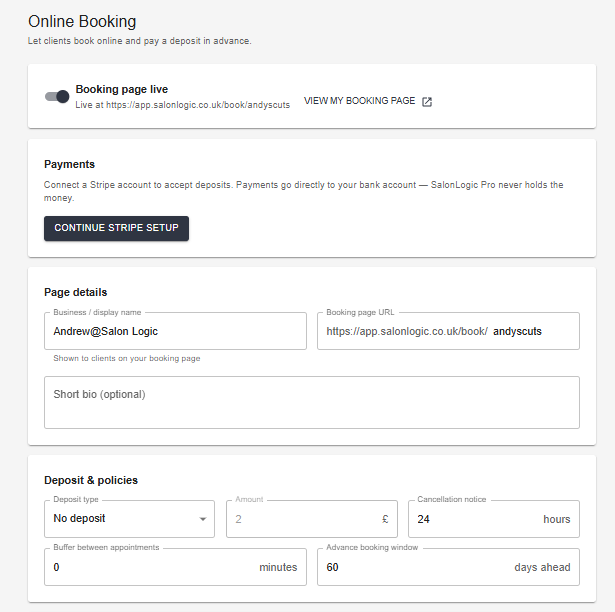
Booking Settings — slug, deposit settings, and cancellation window
Working Hours
Go to Booking → Booking Settings → Working Hours. Set the days you work and your start and end times for each day. Clients will only be shown available slots within these hours.
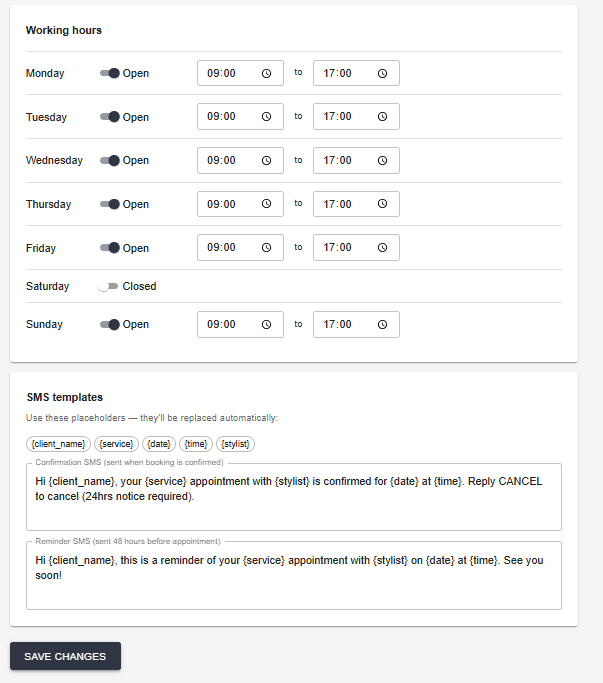
Working hours — set your available days and times
Deposits
Deposits reduce no-shows by asking clients to pay a portion of the service cost at the time of booking. The remainder is collected on the day.
Go to Booking → Booking Settings and configure your deposit rules. You can set a flat amount or a percentage, and apply different rules to different services or packages.
💳 Stripe Deposits — Activating Soon
The deposit infrastructure is fully built and tested. Live mode activation is in progress. No-deposit bookings work end-to-end right now.
Cancellation Window
The cancellation window is the minimum notice a client must give to cancel online. Set this in Booking → Booking Settings.
For example, a 24-hour cancellation window means clients can cancel up until 24 hours before their appointment. After that point, online cancellation is locked and they must contact you directly.
SMS Templates
Go to Booking → Booking Settings → SMS Templates to customise the messages sent to clients at booking, as a reminder, and when a patch test is required.
SMS templates — configured below Working Hours on the same Booking Settings page
Templates support placeholders that are replaced automatically when messages are sent:
{client_name} {service} {date} {time} {stylist}
📱 SMS Sending — Coming 2026
SMS delivery via Twilio is in development. Templates can be configured now and will activate when SMS goes live.
Confirmed Bookings
Go to Booking → Online Bookings to see all bookings from your public page. The list is split into tabs: Confirmed, Awaiting Patch Test, and Cancelled.
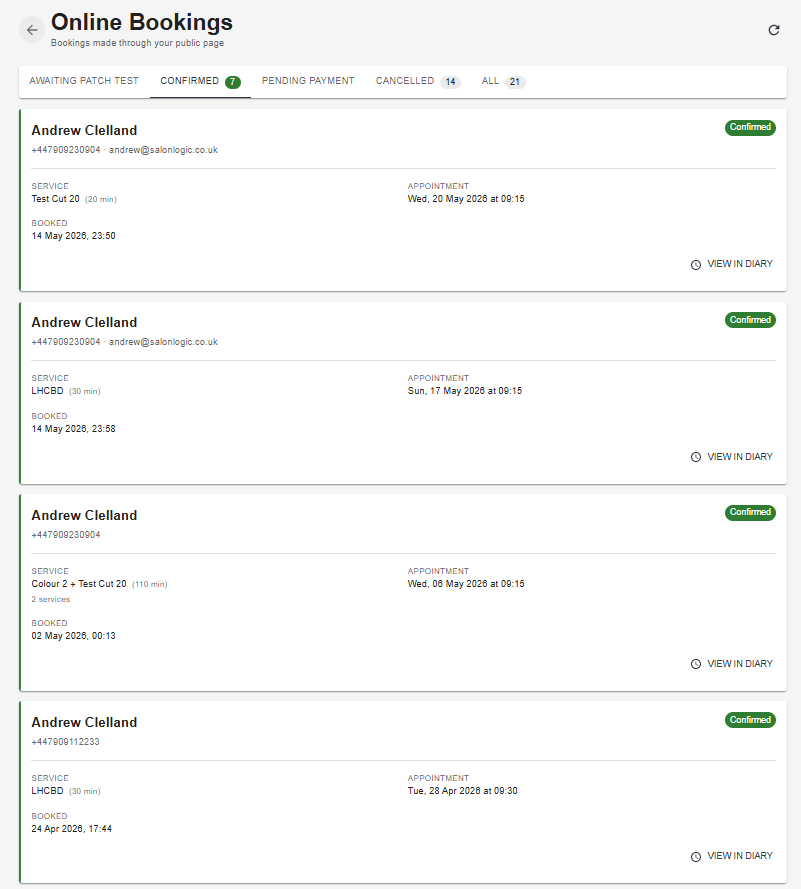
Confirmed bookings — service, appointment time, and booking date
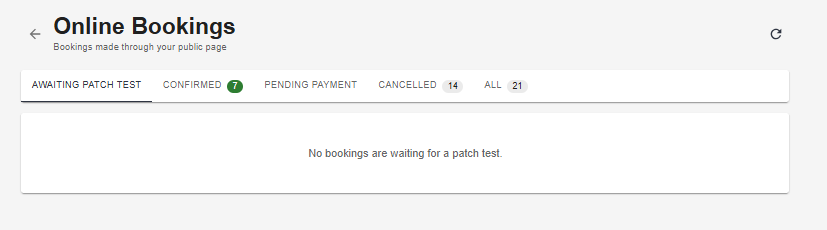
Awaiting Patch Test — bookings where the patch test requirement has not yet been met
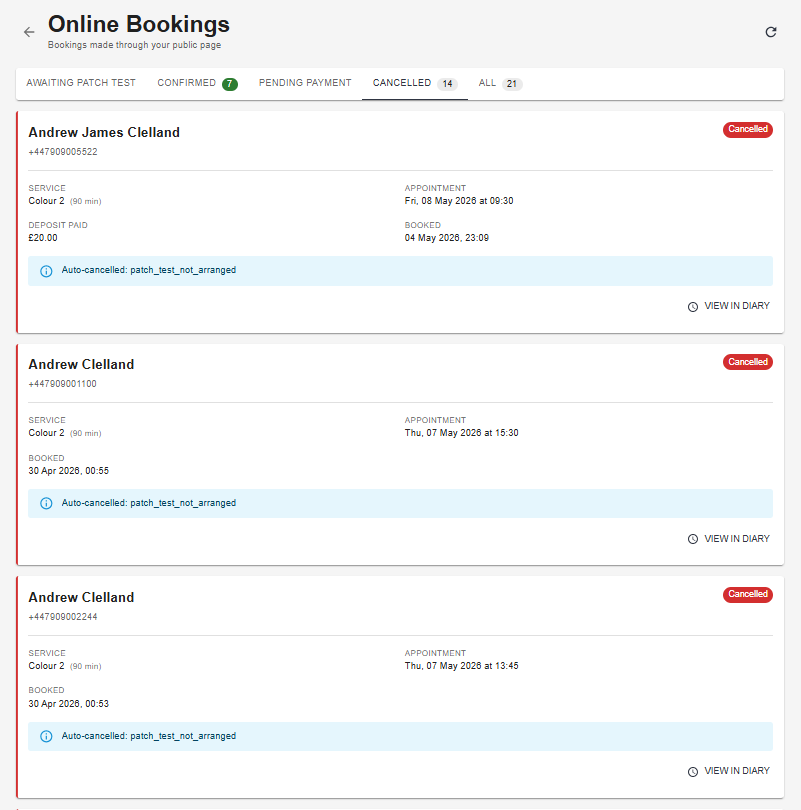
Cancelled bookings — auto-cancelled appointments show the cancellation reason
Patch Test Enforcement
For any service marked as requiring a patch test, the system automatically handles the full enforcement flow — without you needing to do anything.
What happens automatically
Sharing Your Booking Link
Your booking link is app.salonlogic.co.uk/book/your-slug. Put it everywhere:
What Clients See
The public booking page walks clients through four steps:
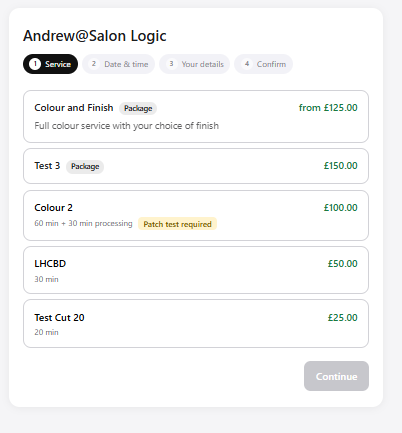
Step 1 — services and packages listed with prices and durations
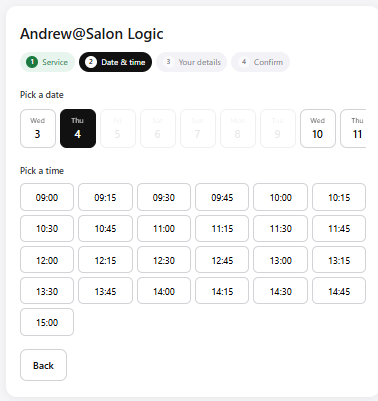
Step 2 — date and time picker showing available slots
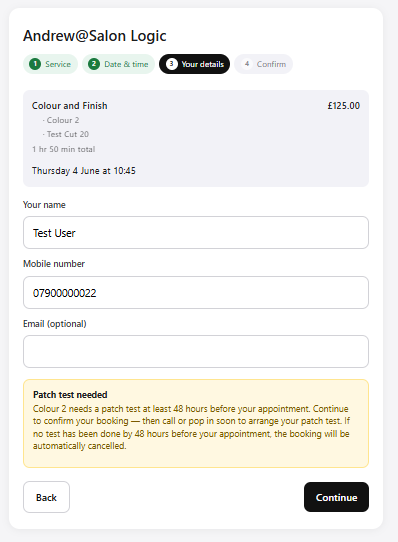
Step 3 — patch test notice shown automatically for colour services
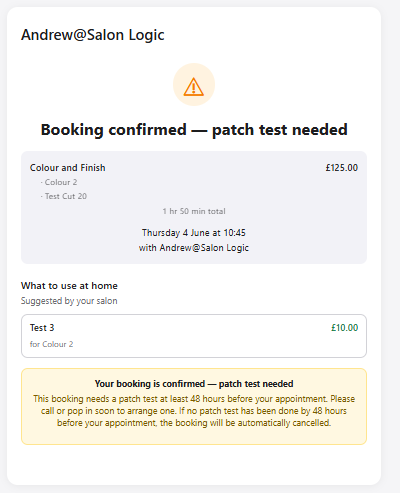
Step 4 — confirmation with retail product recommendation
Packages
Packages appear in the same list as standalone services, labelled with a Package tag and showing a "from" price until the client has made their selections. When a client taps a package, it expands inline to show any choice slots they need to fill — fixed slots (where there's only one option) are pre-selected automatically. The Continue button stays greyed out until every slot has been filled, so no booking can be submitted with an incomplete package.
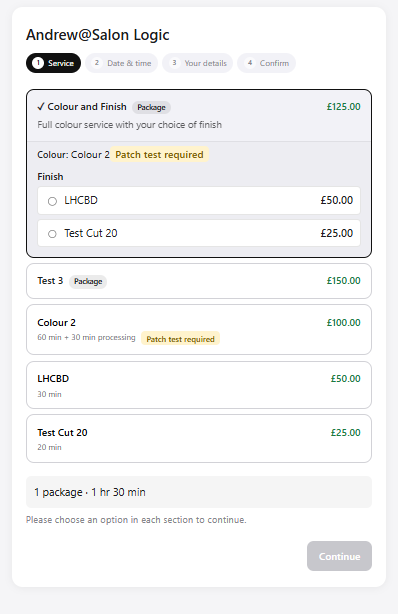
Package expanded — the client must choose an option in each section before continuing
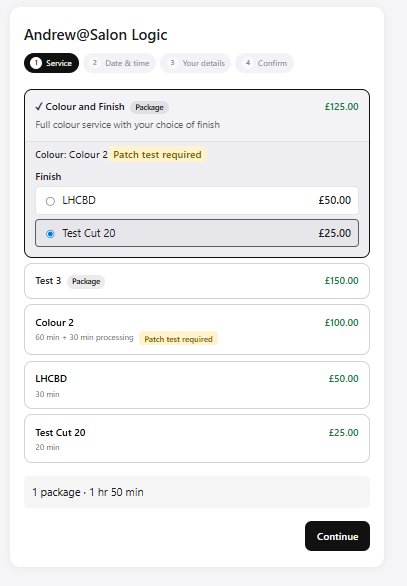
Once all slots are filled the price resolves, the duration updates, and Continue becomes active