SalonLogic Solo
Diary & Appointments
Manage your appointments, log product usage, and track retail recommendations.
Diary
Your Diary
The diary shows your week at a glance. Online bookings drop in automatically. You can add manual appointments directly from any time slot.
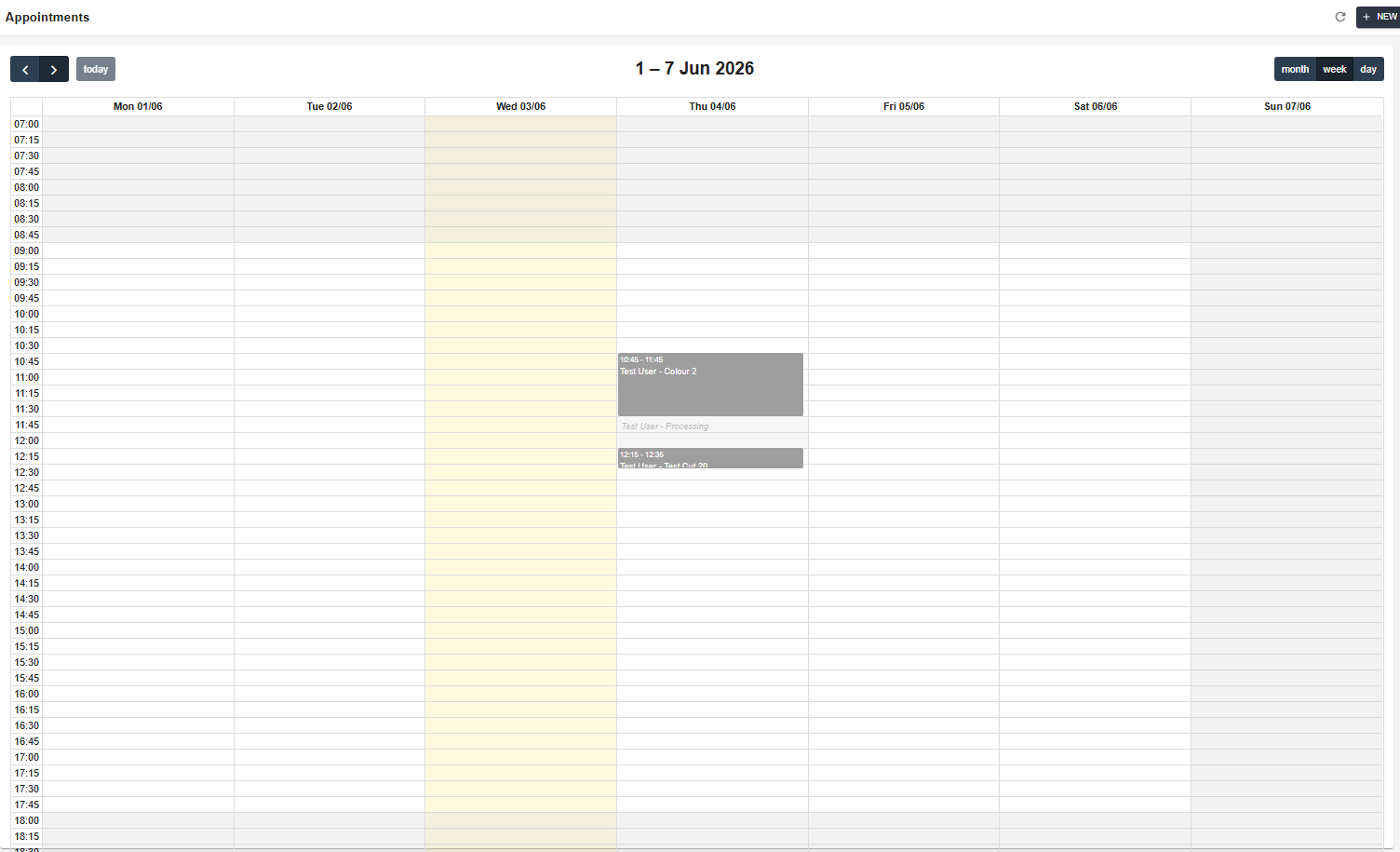
Diary — weekly view with appointments and processing time shown as distinct blocks
Processing time is shown as a separate band within each appointment, making it clear when you are free to take another client during a long colour service.
💡
Online bookings from your public page appear in the diary automatically — you do not need to transfer them manually.
Diary
Adding Appointments
Click any empty time slot in the diary, or use Diary → New Appointment.
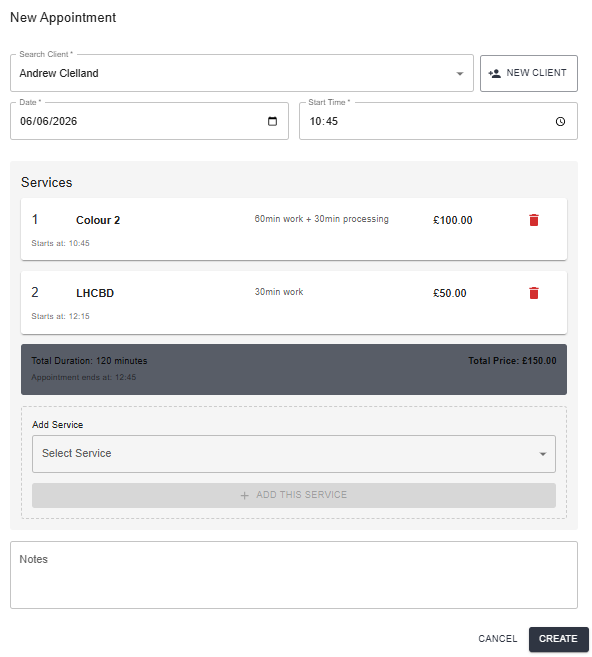
New appointment — client search, date, time, service selection, and live total
How do I add a manual appointment?
1
Click an empty slot in the diary or go to Diary → New Appointment
2
Search for the client by name or phone number. If they are new, add them from this screen
3
Select the service — duration and total time calculate automatically
4
Confirm the date and time
5
Click Save — the appointment appears in the diary immediately
ℹ️
Manual diary appointments are not subject to the available days restriction on services. You can book any service on any day through the diary.
Diary
Appointment Details
Click any appointment in the diary to open its detail view — client name, services, price, and any retail product recommendations for that service.
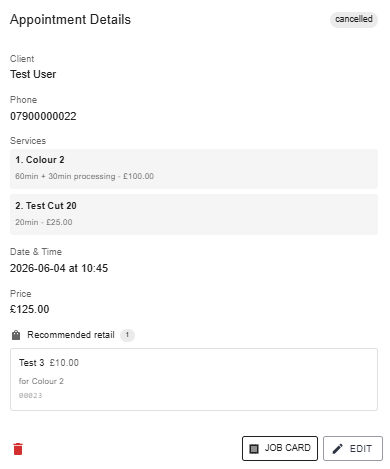
Appointment details — client, services, price, and retail recommendations
💡
Retail recommendations are populated automatically from your product-to-service links. When you open a colour appointment the system already knows which aftercare product to suggest — you just have it on the shelf and mention it.
Diary
Job Cards
Open any appointment and click Job Card to log the products you used during the service. This feeds your shopping list — after a few appointments the system learns your typical usage per service and reorder suggestions become automatic.
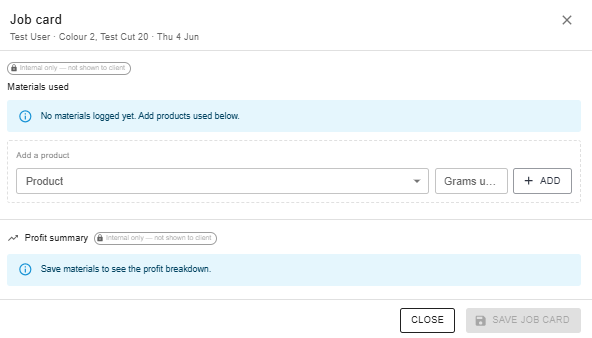
Job Card — log products used; profit summary updates once materials are saved
How do I complete a job card?
1
Open the appointment from the diary
3
Add each product used with the quantity — brand, shade, weight
4
Click Save — the profit summary for that appointment updates to show materials cost and margin
💡
Completing job cards consistently is what makes your shopping list accurate and your pricing calculator real. Even rough quantities are better than nothing — the system uses averages over time.
Next Steps
Where to go next