SalonLogic Solo
Services & Packages
Build your service menu, set processing times, create packages, and link everything to the pricing calculator.
Services
Adding Services
Your services are the foundation of everything — your booking page, your diary, your pricing calculator, and your packages all draw from this list.
🔴
Set up your services before using the pricing calculator. The calculator links to your services list — if you open the calculator before adding your services, there will be nothing to link to. Add all your services here first, then open the calculator to connect them and build your pricing.
Go to Services → Add Service to add each service you offer.

Services — duration, processing time, total time, price, and patch test requirement per service
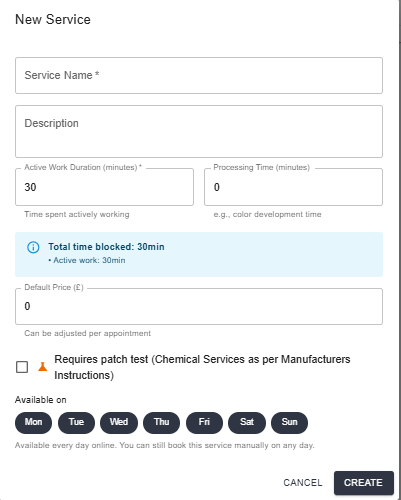
Add Service — duration, processing time, price, patch test flag, and available days
How do I add a service?
1
Go to Services → Add Service
2
Enter the service name and price
3
Set the active work duration — the time you are hands-on with the client
4
Add processing time if applicable — colour development, treatment processing
5
Toggle Patch Test Required if it is a colour or chemical service
6
Select the days it can be booked online
Services
Processing Time
Processing time is the period during a service when the client is sitting — colour developing, a treatment processing — and you are free to take another client.
Set active work duration and processing time separately on each service. The diary blocks the full total time but shows the processing slot as a distinct band, so you can see at a glance when you are free.
💡
Getting processing time right is what makes your diary genuinely efficient. A 90-minute colour with 45 minutes of processing means you have a 45-minute window for a cut or blow-dry on another client — the diary shows this clearly so you never accidentally double-book your hands.
Services
Available Days
The Available on day selector on each service controls which days that service can be booked online by clients.
This is useful if you only offer certain services on certain days — for example, you might only do full colour on Tuesdays and Thursdays when you have more time. Clients trying to book that service on other days simply won't see it as available.
ℹ️
Available days only affect online bookings. You can still book any service on any day manually through the diary, regardless of this setting.
⚠️
If services in a package have conflicting available days, clients will see a warning that the combination cannot be booked online. Make sure services you bundle together share at least one common available day.
Services
Pricing Calculator
The pricing calculator works out the true cost of each service — materials, your time, and a share of your overheads — and tells you your break-even price and recommended selling price.
Once your services are set up, go to Calculator → Services to link each service and configure its costing.
🔴
Add your services first, then open the calculator. The calculator pulls your service list to link against. If you go to the calculator before adding services, the list will be empty.
How do I link a service to the calculator?
1
Go to Calculator → Services
2
Click Add Service and select from your services list
3
Add the products used in the service with quantities
4
Review the calculated break-even and recommended price
5
Adjust your selling price in Services if needed
💡
The calculator uses your product costs, your time (based on the service duration), and your overheads to arrive at a true cost per service. Most stylists find their colour services are underpriced once they see the real numbers — the processing time overhead is usually the surprise.
Packages
Package Types
Packages let you bundle services together as a single bookable item — with a combined price, a single deposit, and a smooth client booking experience.
| Type | How it works | Example |
|---|
| Fixed-slot | All services included at a fixed price — no choices for the client | Colour + Blow-dry at £95 |
| Choice-slot | Anchor service is fixed; client chooses the remaining slot(s) from a defined list of options | Colour (fixed) + choice of Cut or Blow-dry |

Packages — active packages with slot count, price override, and booking count
Packages
Creating a Package
Go to Services → Packages → Add Package.
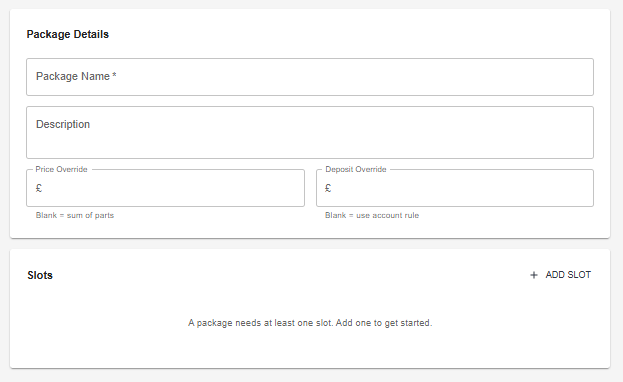
Add Package — name, price override, deposit override, and slots
How do I create a package?
1
Go to Services → Packages → Add Package
2
Give the package a name — this is what clients see on your booking page
3
Set a price override if the package price differs from the sum of its parts. Leave blank to use the total of individual service prices
4
Add slots — for fixed packages, add each service. For choice packages, set one slot as the anchor and add options to the remaining slots
5
Click Save — the package appears on your booking page immediately
💡
Choice-slot packages are good for upselling. A client booking a colour automatically sees that adding a blow-dry or a cut is part of a named package at a bundled price — it frames the upgrade as a package rather than an add-on.
⚠️
Check that all services in a package share at least one common available day, or clients will see a warning that the package cannot be booked on their chosen date.
Next Steps
Where to go next
Services set up — now configure your booking page and go live.