Rota & Commission
Build and publish the weekly rota, manage shift templates, and configure commission.
Staff Rota
Staff Rota lives under Time & Attendance and is where you build each week's working pattern, assign shifts, and publish the rota so your team can see it.
The Rota Dashboard
Go to Time & Attendance → Staff Rota. The dashboard opens on the current week, with four counters across the top — Working Today, Shifts This Week, This Week Published, and Next Week Published.
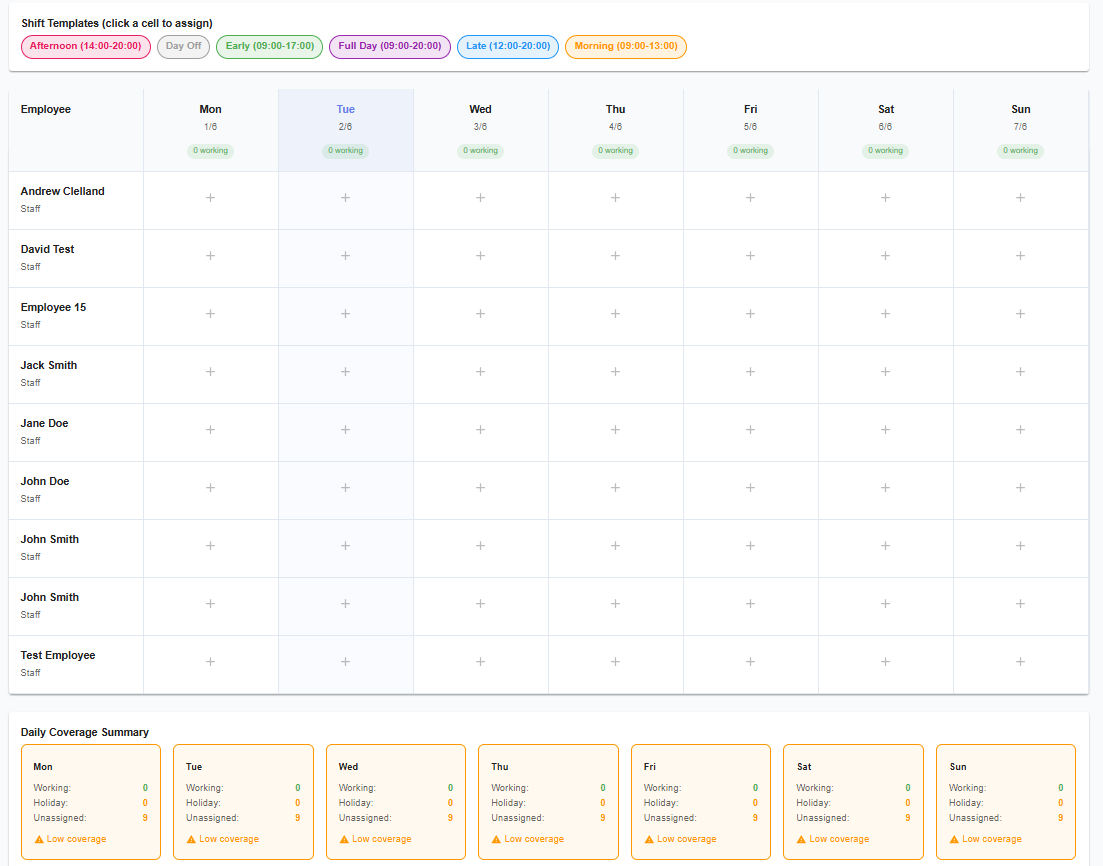
Staff Rota — week view, with a warning triangle under any day with no shifts assigned
Below the counters, the week is shown as seven day columns (Monday to Sunday), each showing how many people are working that day. A warning triangle appears under any day with nobody assigned yet — your at-a-glance cue that a day still needs covering. Use the arrows either side of the week label to move forward or back a week.
Your team list sits below the week grid, and three quick actions — Build Rota, Shift Templates, and My Schedule — sit at the bottom of the dashboard.
Building the Rota
Click Build Rota (or Edit Rota from the dashboard header) to assign shifts. It's a drag-and-drop interface — drag a shift onto an employee's day to assign it.
Shift Templates
Click Shift Templates to create and manage reusable shift patterns, so you're not setting start and end times from scratch every time. Six default templates come built in:
| Template | Hours | Break |
|---|---|---|
| Early | 09:00 – 17:00 | 30 min |
| Late | 12:00 – 20:00 | 30 min |
| Full Day | 09:00 – 20:00 | 60 min |
| Morning | 09:00 – 13:00 | — |
| Afternoon | 14:00 – 20:00 | — |
| Day Off | — | — |
You can also create your own templates with custom hours, break length, and colour if these don't match how your salon actually schedules shifts.
Holiday & Coverage
The rota automatically knows who's on approved holiday each day, and reflects that in two ways: holiday is shown against the employee in the week view, and you're blocked from assigning them a shift on a day they're off.
Coverage is tracked per day — how many staff are working, how many are on holiday, and how many are unassigned. The warning triangle under each day on the dashboard is driven by this same coverage calculation.
Publishing
Shifts you assign aren't visible to your team until you publish the week. If the current week isn't published yet, a banner across the bottom of the dashboard reminds you, with a Publish Now button.
Copying a Week
Click Copy From Previous to duplicate the previous week's shifts into the current week, rather than rebuilding a similar pattern from scratch. If an employee is on approved holiday on the copied date, or already has a shift assigned that day, that one shift is skipped rather than overwritten.
Commission
What's confirmed so far: there are two components, not the three implied by the Team Management hub's listed quick actions (Commission Dashboard, Commission Types, Employee Commission) — only a Dashboard and a Type Editor exist. Whether "Employee Commission" is a planned third screen or a view inside one of the other two isn't known yet.