Team & Employees
Your employee directory, the employee card, working schedules, and bulk staff import.
Your Team
Every employee in your salon has a record here — their personal details, their role, their pricing tier, their working schedule, and the individual record card that everything else in Pro (rota, leave, payroll, reviews, commission) connects back to.
This guide covers adding employees, the directory, and every tab on the employee card — including the Working Schedule tab, which several other parts of the system depend on. Leave, absence, reviews, training, rota, and commission each have their own dedicated guide; this is the hub they all link out from.
Employee Directory
Go to Team → Employees for the full list of everyone on your team.
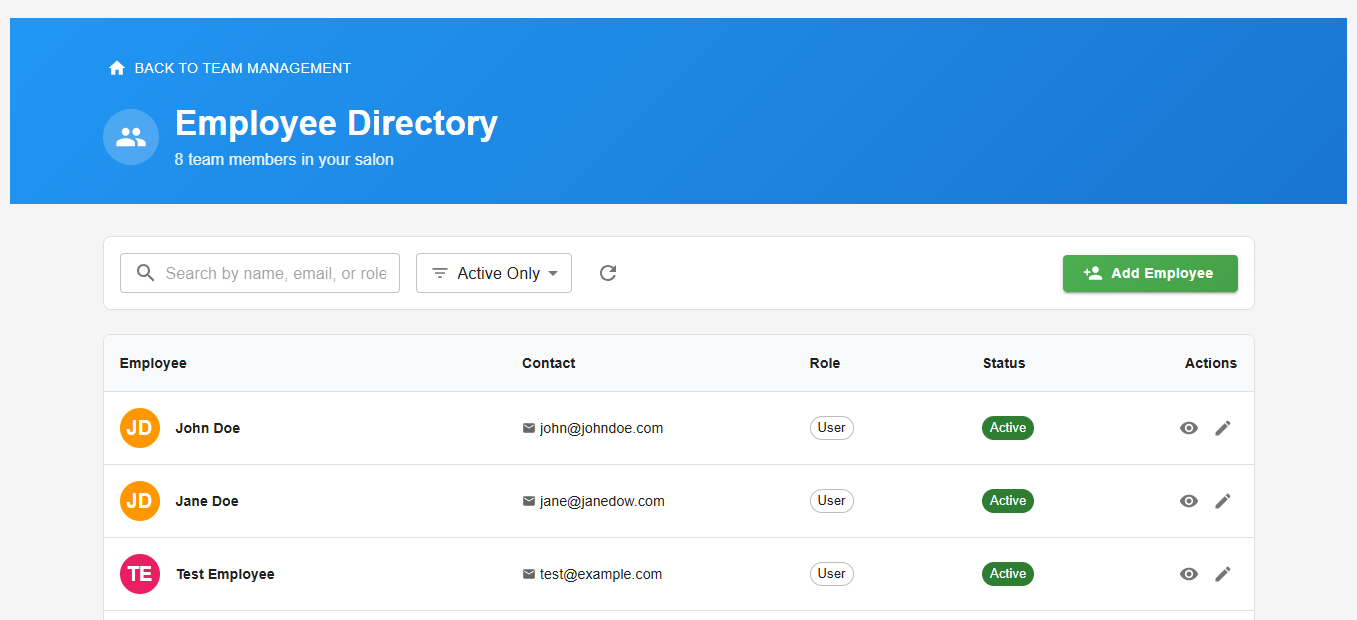
Employee directory — your full team at a glance
Adding an Employee
Go to Team → Employees → Add Employee. The form is split into two sections.
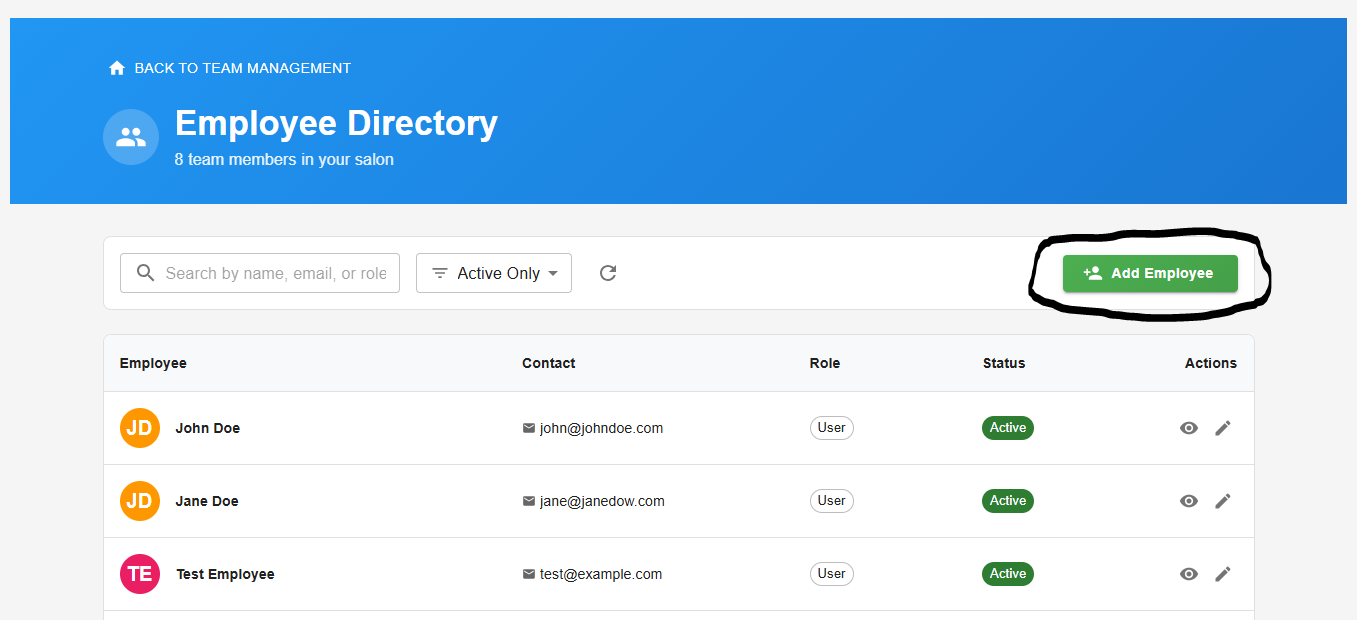
Personal details — name, contact information, and date of birth
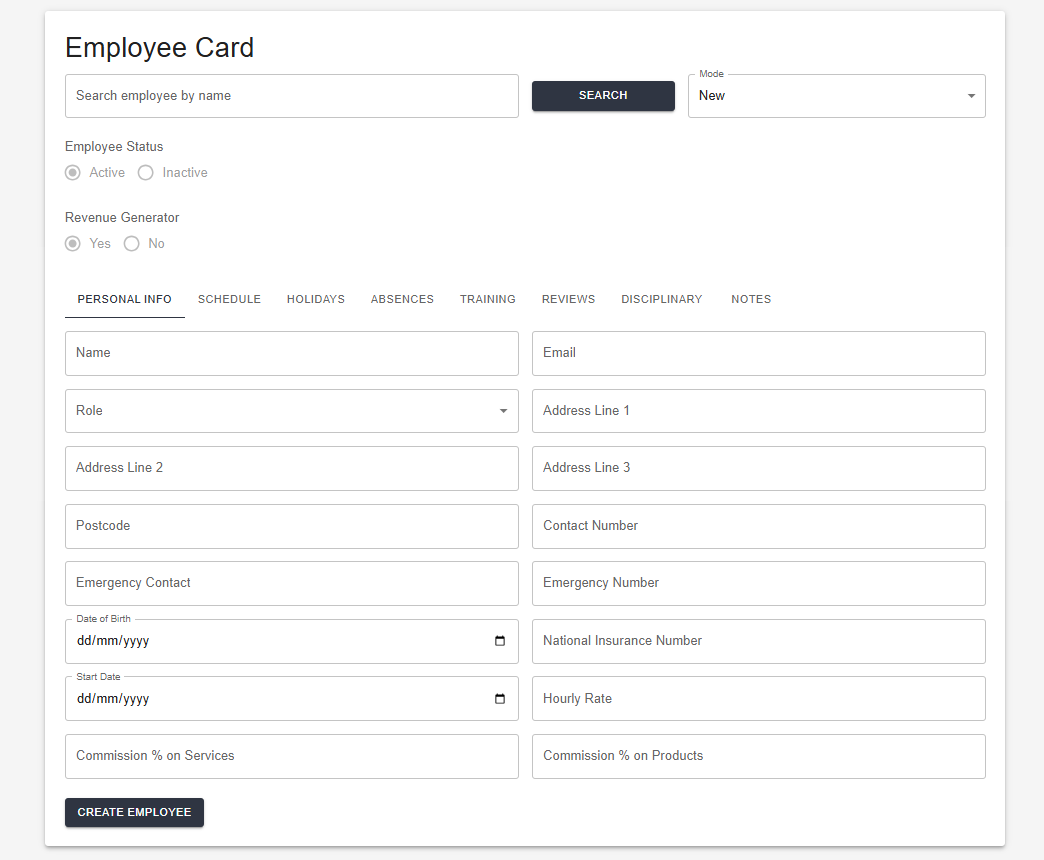
Employment details — start date, contracted hours, and role
Roles
Each employee is assigned one of three roles, which controls what they can see and do in the system.
| Role | Typical use |
|---|---|
| Owner | Full access across the account |
| Manager | Sees only what the Owner has authorised — nothing by default until configured |
| User | No access to the admin app — limited to the self-service Employee Portal |
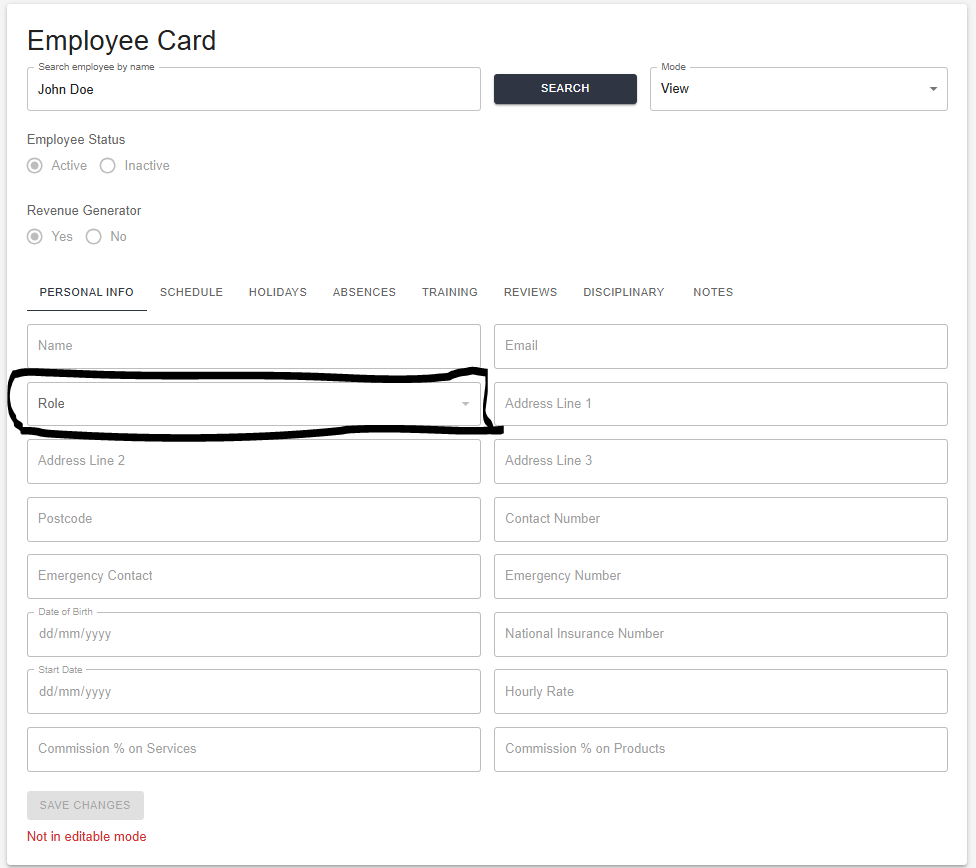
Role dropdown — Owner, Manager, or User
The Employee Card
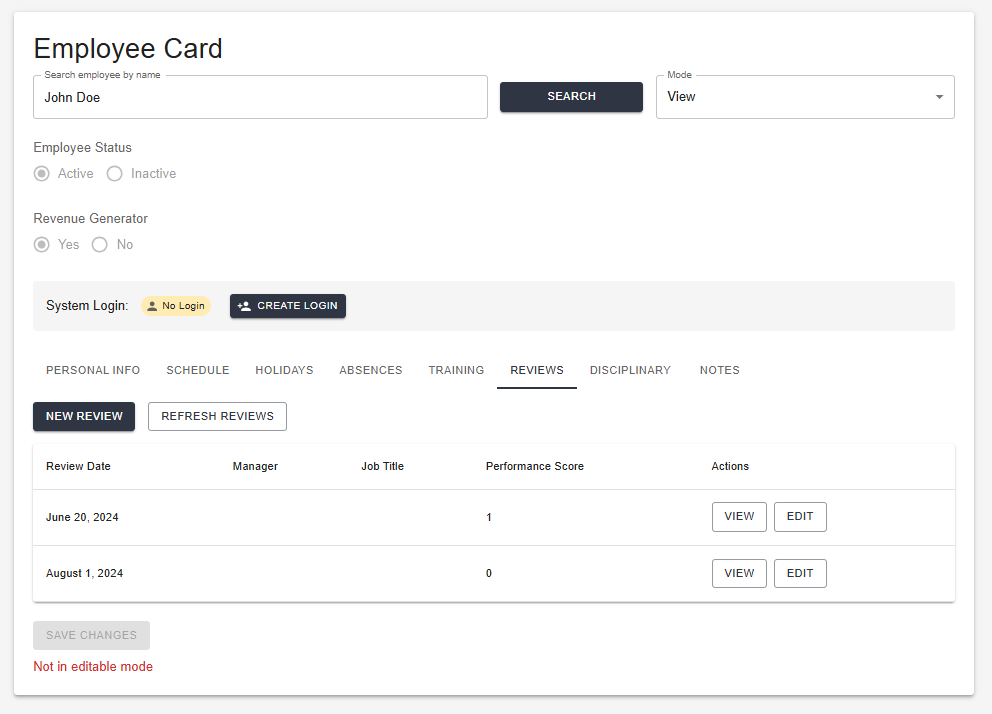
Click any employee in the directory to open their card. It's organised into tabs across the top: Personal Info, Schedule, Holidays, Absences, Training, Reviews, Disciplinary, and Notes.
Personal Info
The default tab, and where their day-to-day details live — including pricing tier assignment.
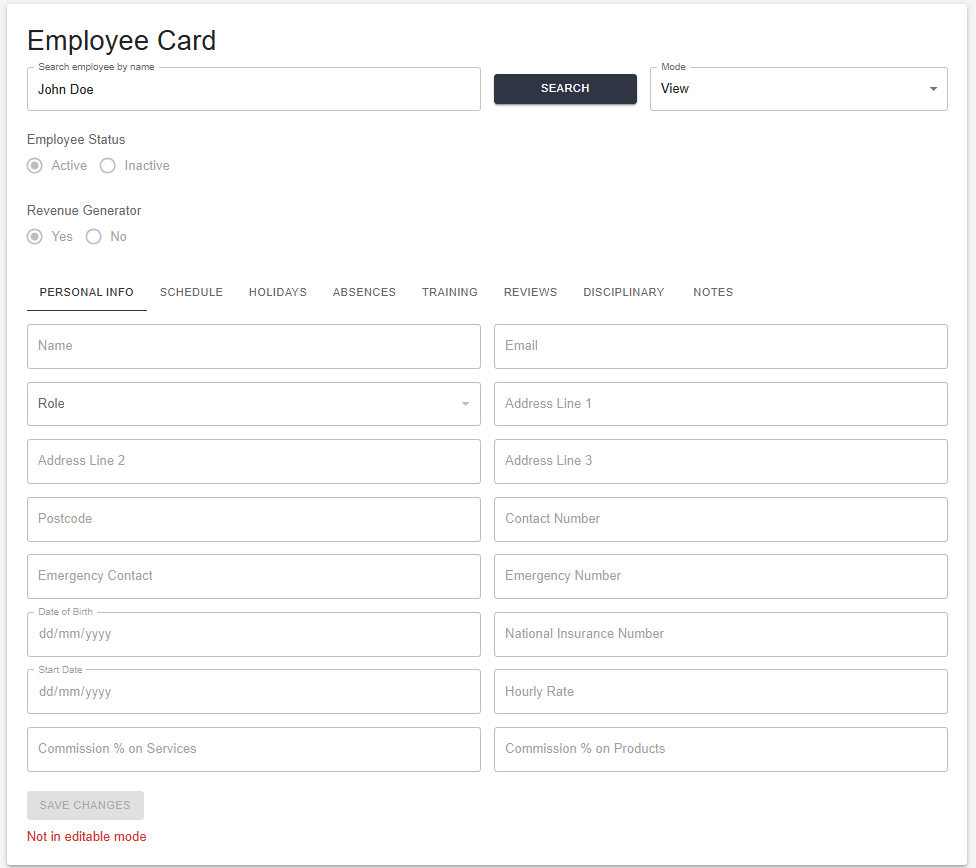
Employee card — Personal Info tab, including pricing tier assignment
The remaining tabs are covered below and in their own dedicated guides.
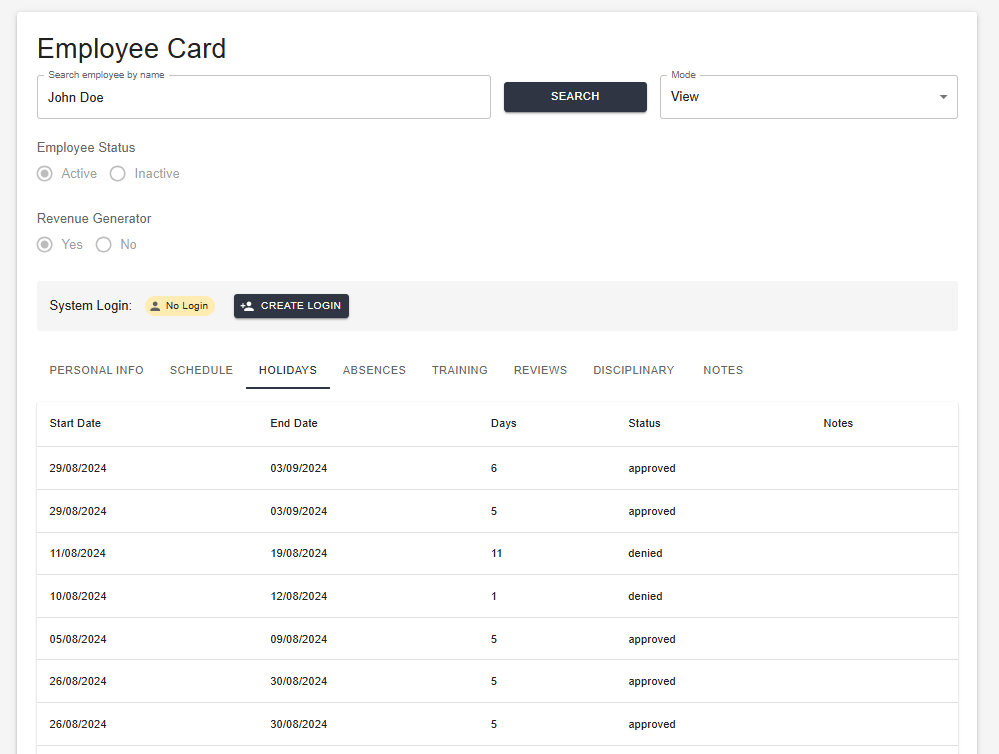
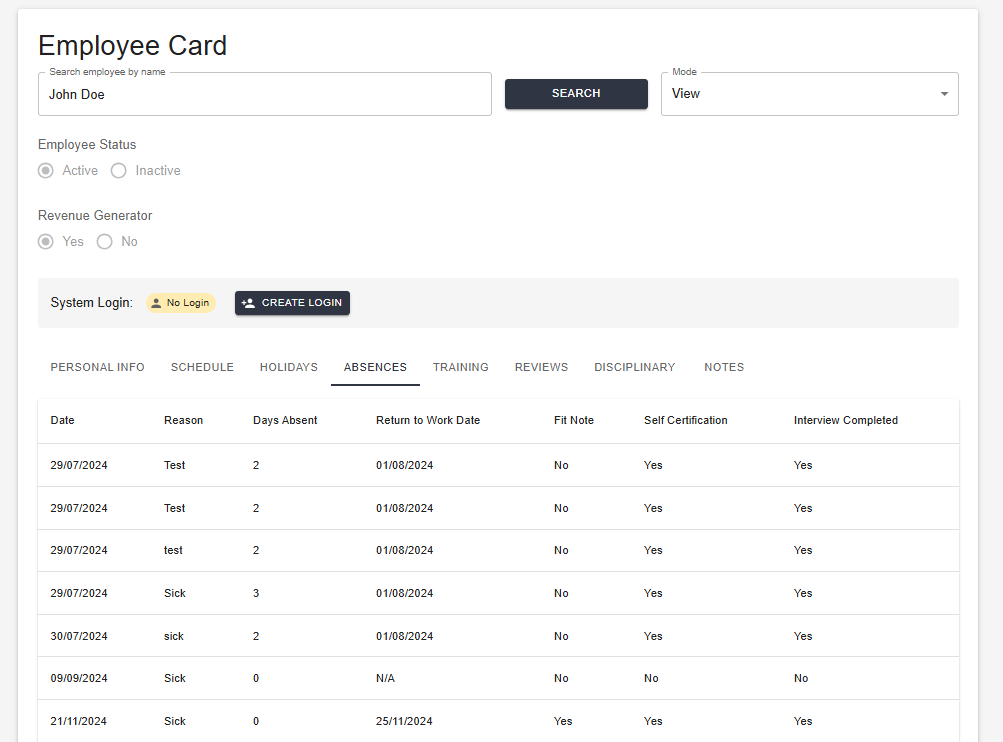
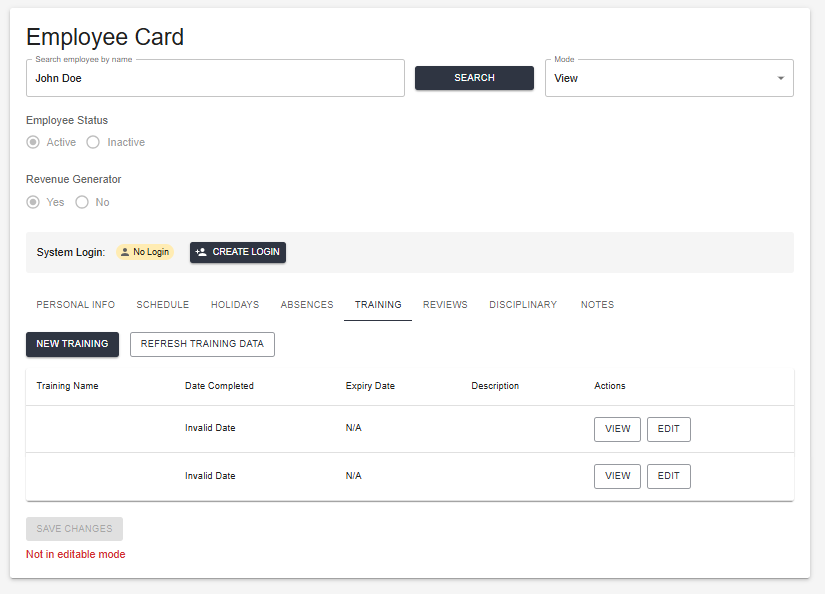
The Notes tab holds general free-text notes against the employee's record.
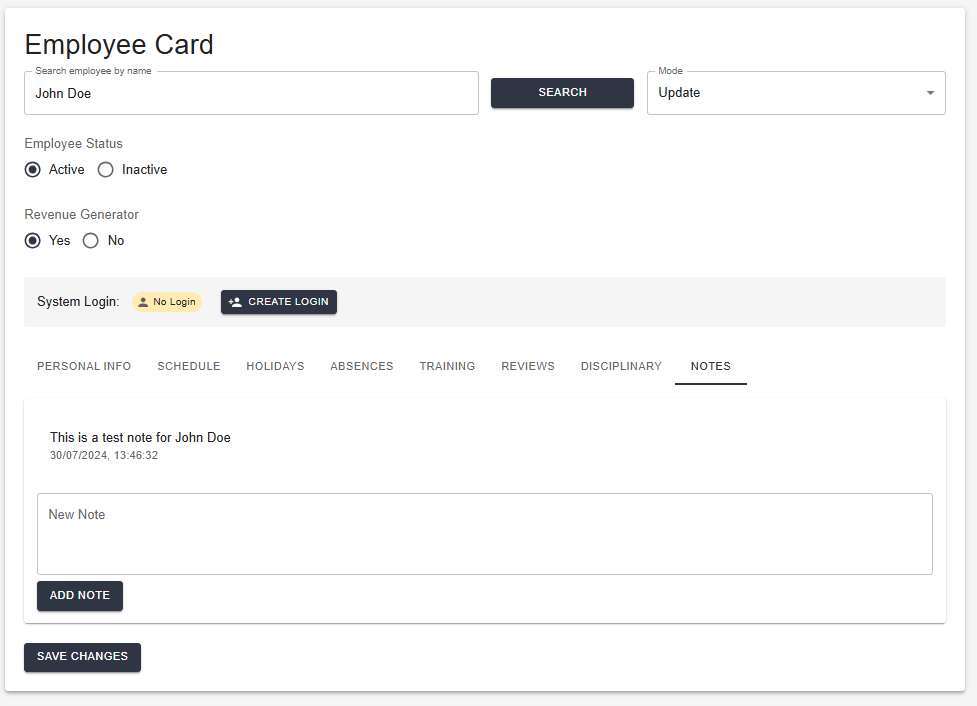
Notes tab
Working Schedule
The Schedule tab sets an employee's regular weekly working pattern — which days they normally work, their start and end times, and their break. This is separate from the Rota: the Schedule is the recurring pattern behind the scenes; the Rota is the actual shift-by-shift plan you build week to week. See Rota & Commission for building the rota itself.

Working Schedule — toggle each day on or off and set hours and break time
Disciplinary Records
The Disciplinary tab holds a record of any formal disciplinary action taken against the employee — a chronological log kept against their card alongside Absences, Holidays, and Notes.

Disciplinary tab — record of formal disciplinary action
Importing Employees
Go to Data → Import — the same import hub used for services, products, suppliers, expenditure, income, and clients, with one card per data type.
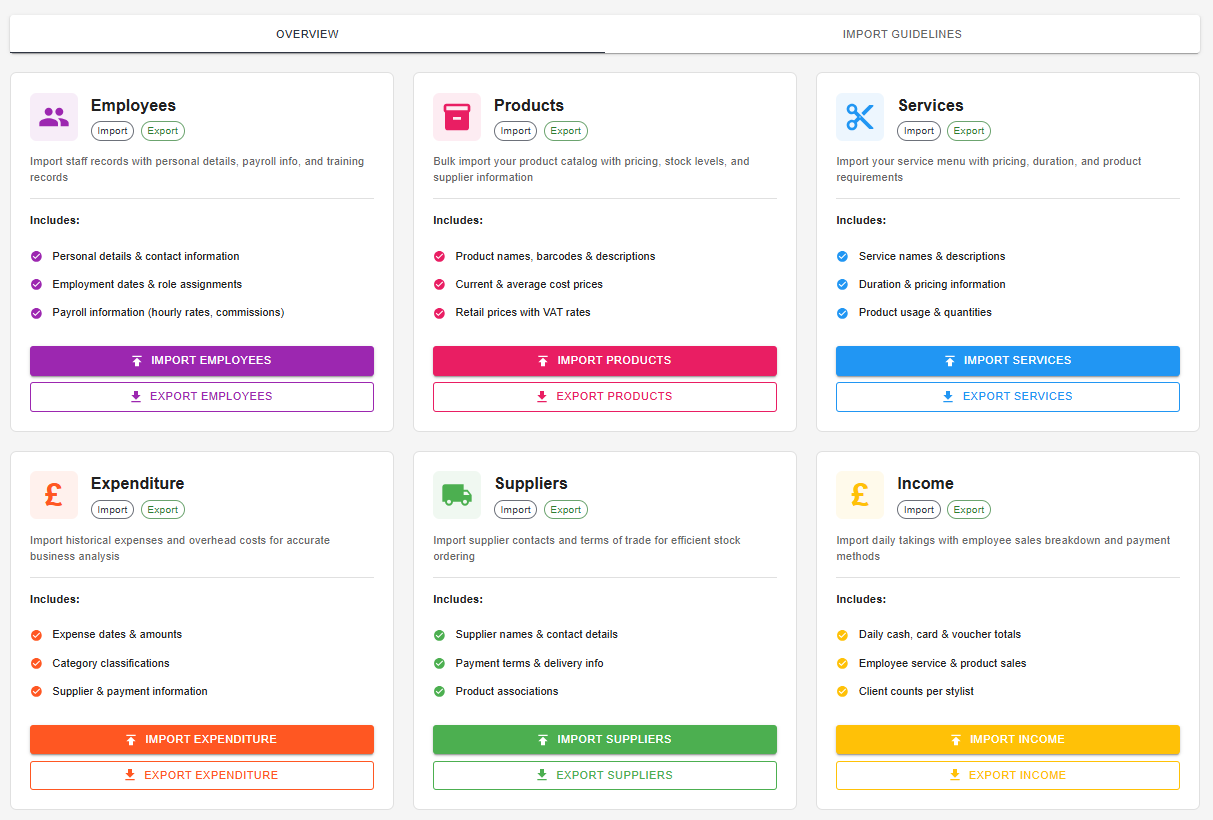
Data Import — seven import types: Employees, Products, Services, Expenditure, Suppliers, Income, and Clients
Each card lists exactly what that import covers and offers both Import and Export — Clients is import-only. Employees covers personal details, employment dates and role, and payroll information such as hourly rates and commission.
Choose the Employees card to bulk-import your team rather than adding people one at a time.
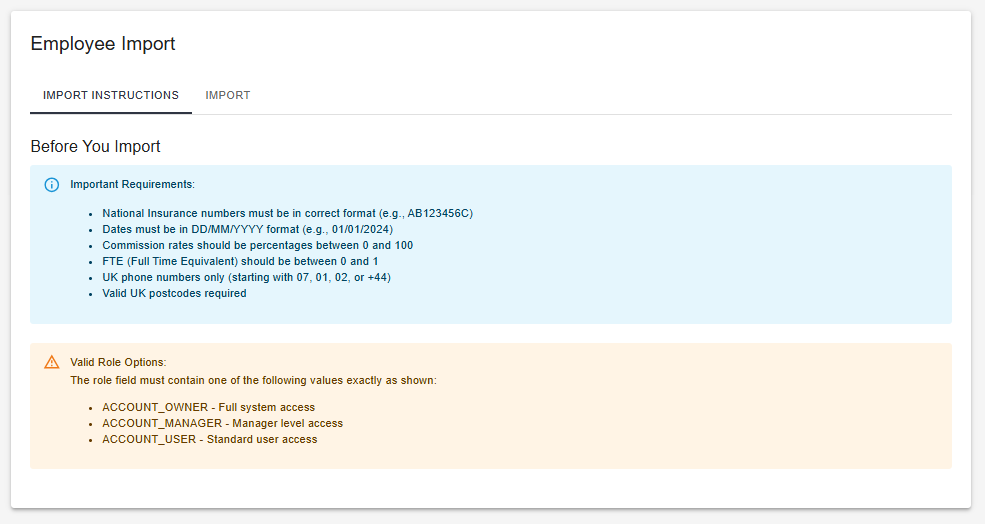
Instructions — download the template and match the required columns exactly
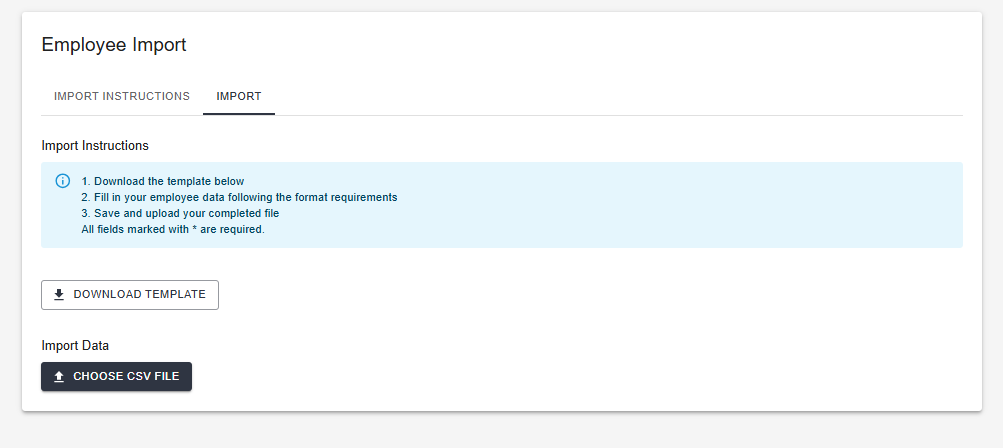
Upload screen — select your completed file
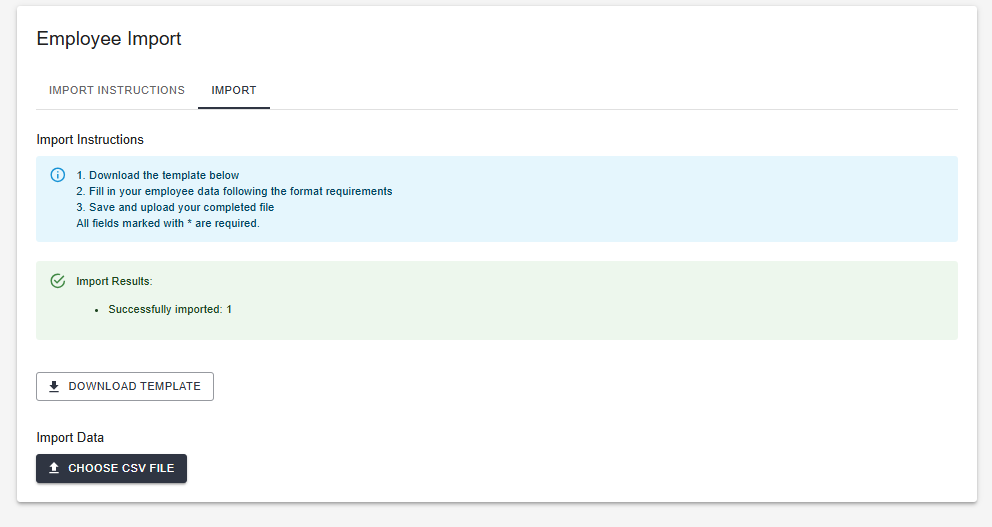
A successful import — every row processed without errors
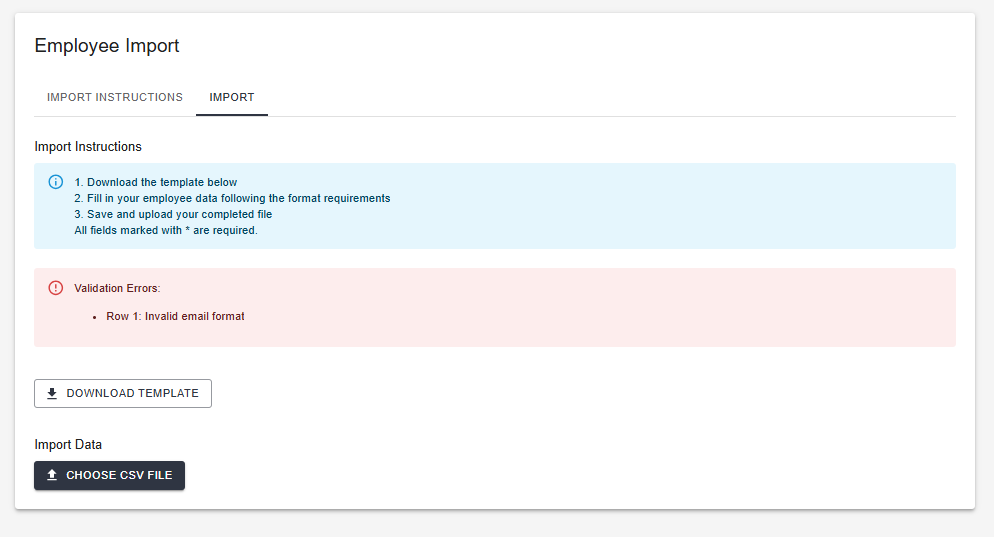
Validation errors — fix the flagged rows and re-upload